
Amplifying Your Impact: A Comprehensive Guide to Streaming from Zoom
Unlock the Power of Virtual Engagement for Speakers, Trainers, and Nonprofits in a Digital World

I’m excited to share a valuable resource that I believe will enhance your virtual engagements. Below you’ll find a comprehensive guide on streaming from Zoom, designed specifically for all speakers at any comfort level.
Together, we’ll explore the benefits of streaming, provide step-by-step setup instructions, and introduce some fantastic third-party tools to help you elevate your broadcasts. It’s all about connecting with your audience in our digital-first world, and I’m confident you’ll find these insights helpful!
Feel free to reach out if you have any questions at Questions@CalmClearMedia.com or want to discuss how you can make the most of your streaming opportunities. I will be hosting an office hours event this Thursday where you can bring your questions. Sign up here! Happy streaming!
Best,
Christopher
A Guide for Speakers, Trainers, and Nonprofits
In today's virtual-first world, reaching your audience effectively means leveraging tools that can extend your message beyond the meeting room. Streaming from Zoom offers a seamless way to amplify your voice, whether you're delivering a keynote, hosting a training session, or connecting with your community. Let’s explore why streaming is a game-changer, how to set it up, and third-party options to enhance your broadcasts.
The Benefits of Streaming from Zoom
Expand Your Reach: Stream your Zoom meetings or webinars to platforms like YouTube, Facebook Live, or LinkedIn Live, allowing more people to tune in without needing a meeting link.
Engage Diverse Audiences: Streaming allows you to reach people who prefer consuming content on their preferred platforms, increasing engagement.
Boost Visibility: Sharing your expertise live on social platforms can elevate your brand, attract new clients or members, and position you as a thought leader in your field.
Repurpose Content: Recorded streams can be repurposed as on-demand videos, enabling you to maximize the lifecycle of your content.
How to Set Up Streaming on Zoom
Zoom makes it straightforward to live-stream your events. Here’s how to do it:
Enable Streaming: Log in to your Zoom account at zoom.us. Navigate to Settings > Meeting > In Meeting (Advanced) and toggle on Allow livestreaming of meetings. You’ll also see options for enabling Facebook, YouTube, and custom livestreaming services. Ensure these are selected.
Prepare Your Platform:
For YouTube or Facebook Live, ensure your account is ready to go live. For example, on YouTube, you must have live streaming enabled, which might take 24 hours to activate if it’s your first time.
For custom platforms, get your stream URL and key ready from your streaming provider.
Start Your Meeting or Webinar: Once live streaming is enabled, start your Zoom session and click More > Live on [Platform] or Live on Custom Live Streaming Service in the Zoom toolbar.
Monitor Your Stream: After starting the stream, monitor the platform where it’s being broadcast. Engage with comments and ensure the stream quality meets your standards.
Third-Party Streaming Options
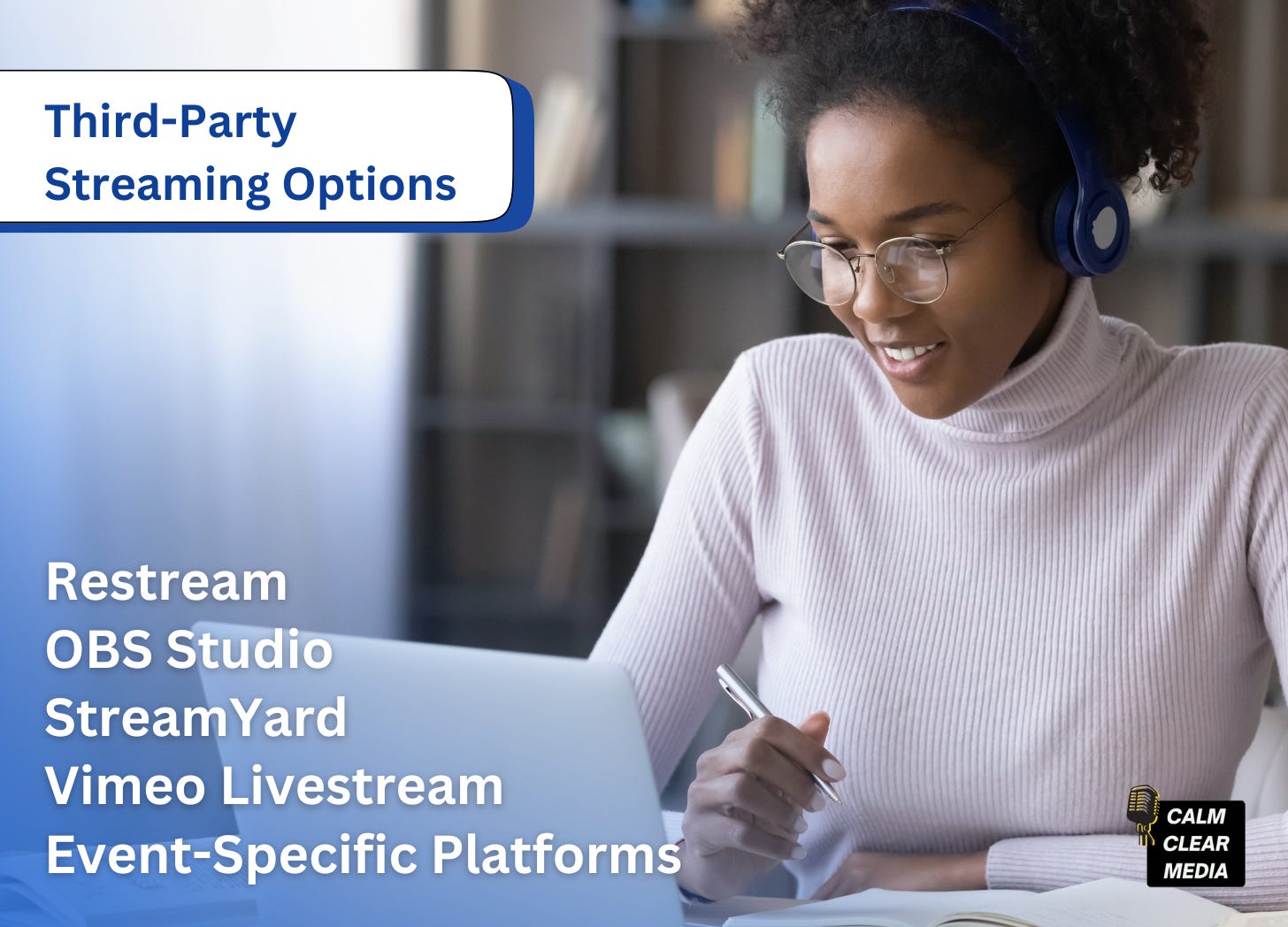
While Zoom provides native streaming to popular platforms, third-party providers can enhance your streaming capabilities:
Restream: Stream to multiple platforms simultaneously, including YouTube, Facebook, LinkedIn, and more. Restream also offers analytics and chat integration to help you manage audience interactions effectively.
StreamYard: A user-friendly tool for adding professional touches like branded overlays, custom layouts, and guest interviews. StreamYard integrates seamlessly with Zoom.
OBS Studio: An open-source solution for advanced streaming setups. OBS lets you mix different video sources, add graphics, and customize your stream’s appearance.
Vimeo Livestream: Ideal for organizations needing secure streaming and audience interaction tools. Vimeo provides robust analytics and branding options.
Event-Specific Platforms: Consider platforms like Hopin or Hubilo or Whova for hybrid events or conferences, which combine streaming with networking and interactive features.
Best Practices for Streaming Success

Test Before You Go Live: Conduct a dry run to ensure your audio, video, and internet connection are stable.
Engage Your Audience: Use chat and Q&A features to interact with viewers.
Promote Ahead of Time: Announce your live stream on social media, email newsletters, and other channels to drive attendance.
Record the Session: Save a copy of your stream for repurposing or sharing with those who missed it.
Let’s Connect
Streaming from Zoom can elevate your virtual events, but getting started might feel overwhelming. I’m here to help! Let’s connect on LinkedIn, where I share insights and tips for leveraging technology to achieve your goals. Reach out at Christopher Johnson on LinkedIn, and let’s start a conversation about how you can make the most of your Zoom streaming opportunities.
🎉 Exciting Events on the Horizon! 🎉
💻 Office Hours - Thursday, March 6, 2025 – 5:30 PM ET
Have questions about virtual events, storytelling, or Zoom? Let’s chat!
🎯 Brenda Meller🥧's VIP Job Search Call - Friday, March 7, 2025 – 10:00 AM ET
I’m excited to join Brenda Meller and an all-star panel, including Linda Brubaker, PhD, Kenneth Lang, Joey Himelfarb 🌞, Mindy Stern SPHR, and Sue Griffey, DrPH, BSN ✺. Together, we’ll provide actionable insights for job seekers.
Hybrid Meeting Best Practices!
Choose Lansing - Tuesday, March 11, 2025
Lunch & Learn - Career Exploration -
Loyola High SchoolTuesday, March 18, 2025
I have done this with mixed success. I stream on YT with Zoom all the time without a glitch. Substack, not so much.
Setting it up I get.
My main question is: does my event need to be open/live on my Substack app as I stream on Zoom?
Online, it says no. But I think the answer is yes.
And once I open the Substack event, do I click to go live on Substack and on Zoom? Or just on Zoom?
Also, if I have a cohost, is there a way for him to set up his feed for automatic emails when we go live?
THANK YOU!